


Back
All posts

Microsoft Teams Jira Notifications: Configuration Guide

June 4, 2026
<a href="https://www.freepik.com/free-vector/business-team-brainstorm-idea-lightbulb-from-jigsaw-working-team-collaboration-enterprise-cooperation-colleagues-mutual-assistance-concept-pinkish-coral-bluevector-isolated-illustration_11667116.htm#query=collaboration&position=2&from_view=keyword&track=sph&uuid=21ea3c1d-7461-49c7-9157-5822c4372896">Image by vectorjuice</a> on Freepik

Getting Jira notifications in Microsoft Teams sounds simple until you realize half your team is drowning in alerts while the other half misses critical updates. The difference between a useful integration and a noisy one comes down to configuration. This guide walks through setting up Advanced Microsoft Teams Connector for Jira so the right people get the right notifications at the right time.

Why Default Jira Notifications Fall Short in Teams

Out of the box, most Jira-to-Teams integrations dump every event into a single channel. Issue created, comment added, status changed, attachment uploaded — it all flows into one stream. Within a week, people mute the channel and you're back to square one.

The goal is targeted delivery: project managers see status changes, developers get notified about code-related updates, and individual contributors receive direct messages when they're assigned work. That requires granular control over which Jira events trigger Teams notifications and where those notifications land.

Setting Up Channel-Level Notifications

Channel notifications are the foundation. Each Teams channel can subscribe to specific Jira projects and event types, so notifications go where they're relevant.

Step 1: Install the Connector

Install Advanced Microsoft Teams Connector for Jira from the Atlassian Marketplace. The app requires a Jira Cloud admin to authorize the connection and a Microsoft Teams admin to approve the app permissions.

Step 2: Connect a Teams Channel to a Jira Project

Once installed, navigate to the Teams channel where you want notifications to appear. Open the connector configuration and select the Jira project you want to link. A single channel can subscribe to multiple Jira projects — for example, a QA channel might subscribe to three projects to monitor bug reports across all of them.

Step 3: Select Event Types

This is where most teams get the configuration wrong. Sending every event type to a channel creates noise, so choose events that are actually actionable for the people in that channel. With the connector, you can trigger a notification card when an issue transitions to a particular state, and configure which fields — including custom fields — appear on that card. Channel setups that work well include:

  • Engineering channels: Issue created, status changed, comment added, sprint started or completed.
  • QA channels: Issue created (filtered to the Bug type), priority changed, and status changed to "Ready for QA."
  • Leadership channels: Sprint completed, version released, epic status changed.
  • Support channels: Issue created (filtered to Service Desk projects), priority changed to High or Critical.

Filtering Notifications by Project and Issue Type

Channel-level project selection is the first layer of filtering. But within a project, you often want only specific issue types or priorities to trigger notifications.

Filter by Issue Type

A development channel probably doesn't need notifications about every Story, Task, Sub-task, and Bug. Configure filters to include only the issue types relevant to that audience. For example, a "Critical Bugs" channel receives notifications only when an issue of type Bug with priority Critical or Blocker is created or updated.

Filter by Priority

Priority-based filtering prevents low-priority noise from cluttering high-signal channels. A leadership channel might only show issues with priority High and above, while a team channel shows everything.

Filter by JQL

For advanced filtering, some configurations support JQL-based rules. This lets you create highly specific notification triggers like "notify this channel only when issues in Project X with the label 'customer-facing' transition to 'In Review'."

Configuring Personal DM Notifications

Channel notifications handle team-wide awareness. Personal DM notifications handle individual accountability. When someone is assigned an issue or mentioned in a comment, they should get a direct message — not rely on spotting their name in a busy channel.

Assignee Change Alerts

The most critical personal notification: when a Jira issue is assigned to you, you get a DM in Teams. This ensures no assignment goes unnoticed, even if the person isn't actively watching the relevant channel. Configure this at the user level — each team member connects their Jira account to their Teams account, and the connector routes personal notifications to their Teams DMs automatically.

Mention Notifications

When someone @mentions a user in a Jira comment, the mentioned person should receive a Teams DM with the comment content and a link back to the issue. This bridges the gap between teams that live in Jira and teams that live in Teams.

Watcher Notifications

Jira watchers can also receive DMs for updates on issues they're watching. This is useful for stakeholders who need to track specific issues without subscribing to entire project channels.

Notification Message Formatting

The value of a notification depends on whether the recipient can act on it without leaving Teams. Good notification formatting includes:

  • Issue key and summary as a clickable link to the Jira issue.
  • What changed: the specific field or event that triggered the notification.
  • Who made the change: the person who triggered the event.
  • Current status and priority: context without clicking through.
  • Action buttons: quick actions like "View in Jira" or "Assign to me" directly in the Teams message.

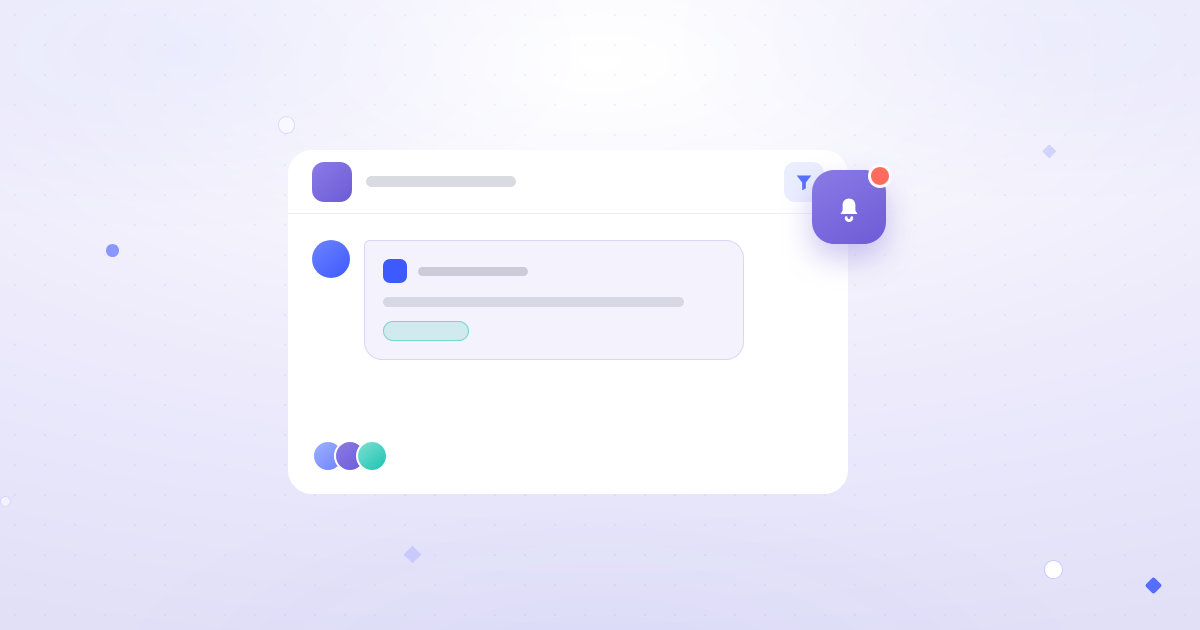
The Advanced Microsoft Teams Connector for Jira formats notifications as adaptive cards in Teams, providing rich context and quick-action buttons without requiring a browser switch.

Managing Notification Volume

Even with good filtering, notification volume can creep up. Here are practical strategies to keep it under control.

Use Digest Mode for Low-Priority Channels

Instead of real-time notifications for every event, some channels benefit from a digest — a periodic summary of activity. For example, a weekly digest of all issues completed in a sprint, sent every Friday afternoon.

Set Quiet Hours

If your team operates across time zones, configure quiet hours so notifications don't fire during off-hours. Personal DM notifications can be held and delivered as a batch when the recipient's working hours begin.

Audit and Prune Regularly

Every quarter, review your channel subscriptions. Projects evolve, team structures change, and notification configurations that made sense six months ago might be generating noise today. Remove stale subscriptions and adjust filters to match current workflows.

Troubleshooting Common Issues

Notifications Not Appearing

First, make sure the triggering event was performed by someone other than you — the connector doesn't notify you about your own actions. If notifications still don't appear, check these in order:

  • App permissions: Confirm the Teams app still has the required permissions. Admin policy changes can revoke them silently.
  • Jira webhooks: Verify that Jira's outgoing webhooks are active and pointing to the correct endpoint.
  • User mapping: Personal DMs require that the Jira user is mapped to the correct Teams user. If someone changed their email address, the mapping may have broken.
  • Channel configuration: Confirm the channel subscription is still active. Channels that are renamed or reorganized can sometimes lose their connector configuration.

Duplicate Notifications

Duplicates usually mean multiple subscriptions overlap. If a channel subscribes to "all events" for a project and a separate rule also sends "issue created" events for the same project, you'll see double notifications on creation events. Audit subscriptions and remove overlapping rules.

Delayed Notifications

Slight delays (a few seconds) are normal. If notifications lag by minutes, the issue is usually on the webhook delivery side. Check Jira's webhook logs for delivery failures or timeouts.

Integration with Broader Workflows

Teams notifications work best as part of a larger integration strategy. If your team also uses Azure DevOps or GitHub alongside Jira, consider connecting those tools as well. Our guide on Jira automation with Azure DevOps covers how to create automated workflows across both platforms. For GitHub-based teams, the GitHub pull request tracking setup guide explains how to surface PR status directly in Jira.

The goal across all these integrations is the same: reduce context switching by bringing relevant information to where your team already works. For teams centered on Microsoft Teams, the Advanced Microsoft Teams Connector for Jira handles the Jira side of that equation — making sure the right updates reach the right people without the noise.
Getting Jira notifications in Microsoft Teams sounds simple until you realize half your team is drowning in alerts while the other half misses critical updates. The difference between a useful integration and a noisy one comes down to configuration. This guide walks through setting up Advanced Microsoft Teams Connector for Jira so the right people get the right notifications at the right time.

Why Default Jira Notifications Fall Short in Teams

Out of the box, most Jira-to-Teams integrations dump every event into a single channel. Issue created, comment added, status changed, attachment uploaded — it all flows into one stream. Within a week, people mute the channel and you're back to square one.

The goal is targeted delivery: project managers see status changes, developers get notified about code-related updates, and individual contributors receive direct messages when they're assigned work. That requires granular control over which Jira events trigger Teams notifications and where those notifications land.

Setting Up Channel-Level Notifications

Channel notifications are the foundation. Each Teams channel can subscribe to specific Jira projects and event types, so notifications go where they're relevant.

Step 1: Install the Connector

Install Advanced Microsoft Teams Connector for Jira from the Atlassian Marketplace. The app requires a Jira Cloud admin to authorize the connection and a Microsoft Teams admin to approve the app permissions.

Step 2: Connect a Teams Channel to a Jira Project

Once installed, navigate to the Teams channel where you want notifications to appear. Open the connector configuration and select the Jira project you want to link. A single channel can subscribe to multiple Jira projects — for example, a QA channel might subscribe to three projects to monitor bug reports across all of them.

Step 3: Select Event Types

This is where most teams get the configuration wrong. Sending every event type to a channel creates noise, so choose events that are actually actionable for the people in that channel. With the connector, you can trigger a notification card when an issue transitions to a particular state, and configure which fields — including custom fields — appear on that card. Channel setups that work well include:

  • Engineering channels: Issue created, status changed, comment added, sprint started or completed.
  • QA channels: Issue created (filtered to the Bug type), priority changed, and status changed to "Ready for QA."
  • Leadership channels: Sprint completed, version released, epic status changed.
  • Support channels: Issue created (filtered to Service Desk projects), priority changed to High or Critical.

Filtering Notifications by Project and Issue Type

Channel-level project selection is the first layer of filtering. But within a project, you often want only specific issue types or priorities to trigger notifications.

Filter by Issue Type

A development channel probably doesn't need notifications about every Story, Task, Sub-task, and Bug. Configure filters to include only the issue types relevant to that audience. For example, a "Critical Bugs" channel receives notifications only when an issue of type Bug with priority Critical or Blocker is created or updated.

Filter by Priority

Priority-based filtering prevents low-priority noise from cluttering high-signal channels. A leadership channel might only show issues with priority High and above, while a team channel shows everything.

Filter by JQL

For advanced filtering, some configurations support JQL-based rules. This lets you create highly specific notification triggers like "notify this channel only when issues in Project X with the label 'customer-facing' transition to 'In Review'."

Configuring Personal DM Notifications

Channel notifications handle team-wide awareness. Personal DM notifications handle individual accountability. When someone is assigned an issue or mentioned in a comment, they should get a direct message — not rely on spotting their name in a busy channel.

Assignee Change Alerts

The most critical personal notification: when a Jira issue is assigned to you, you get a DM in Teams. This ensures no assignment goes unnoticed, even if the person isn't actively watching the relevant channel. Configure this at the user level — each team member connects their Jira account to their Teams account, and the connector routes personal notifications to their Teams DMs automatically.

Mention Notifications

When someone @mentions a user in a Jira comment, the mentioned person should receive a Teams DM with the comment content and a link back to the issue. This bridges the gap between teams that live in Jira and teams that live in Teams.

Watcher Notifications

Jira watchers can also receive DMs for updates on issues they're watching. This is useful for stakeholders who need to track specific issues without subscribing to entire project channels.

Notification Message Formatting

The value of a notification depends on whether the recipient can act on it without leaving Teams. Good notification formatting includes:

  • Issue key and summary as a clickable link to the Jira issue.
  • What changed: the specific field or event that triggered the notification.
  • Who made the change: the person who triggered the event.
  • Current status and priority: context without clicking through.
  • Action buttons: quick actions like "View in Jira" or "Assign to me" directly in the Teams message.

The Advanced Microsoft Teams Connector for Jira formats notifications as adaptive cards in Teams, providing rich context and quick-action buttons without requiring a browser switch.

Managing Notification Volume

Even with good filtering, notification volume can creep up. Here are practical strategies to keep it under control.

Use Digest Mode for Low-Priority Channels

Instead of real-time notifications for every event, some channels benefit from a digest — a periodic summary of activity. For example, a weekly digest of all issues completed in a sprint, sent every Friday afternoon.

Set Quiet Hours

If your team operates across time zones, configure quiet hours so notifications don't fire during off-hours. Personal DM notifications can be held and delivered as a batch when the recipient's working hours begin.

Audit and Prune Regularly

Every quarter, review your channel subscriptions. Projects evolve, team structures change, and notification configurations that made sense six months ago might be generating noise today. Remove stale subscriptions and adjust filters to match current workflows.

Troubleshooting Common Issues

Notifications Not Appearing

First, make sure the triggering event was performed by someone other than you — the connector doesn't notify you about your own actions. If notifications still don't appear, check these in order:

  • App permissions: Confirm the Teams app still has the required permissions. Admin policy changes can revoke them silently.
  • Jira webhooks: Verify that Jira's outgoing webhooks are active and pointing to the correct endpoint.
  • User mapping: Personal DMs require that the Jira user is mapped to the correct Teams user. If someone changed their email address, the mapping may have broken.
  • Channel configuration: Confirm the channel subscription is still active. Channels that are renamed or reorganized can sometimes lose their connector configuration.

Duplicate Notifications

Duplicates usually mean multiple subscriptions overlap. If a channel subscribes to "all events" for a project and a separate rule also sends "issue created" events for the same project, you'll see double notifications on creation events. Audit subscriptions and remove overlapping rules.

Delayed Notifications

Slight delays (a few seconds) are normal. If notifications lag by minutes, the issue is usually on the webhook delivery side. Check Jira's webhook logs for delivery failures or timeouts.

Integration with Broader Workflows

Teams notifications work best as part of a larger integration strategy. If your team also uses Azure DevOps or GitHub alongside Jira, consider connecting those tools as well. Our guide on Jira automation with Azure DevOps covers how to create automated workflows across both platforms. For GitHub-based teams, the GitHub pull request tracking setup guide explains how to surface PR status directly in Jira.

The goal across all these integrations is the same: reduce context switching by bringing relevant information to where your team already works. For teams centered on Microsoft Teams, the Advanced Microsoft Teams Connector for Jira handles the Jira side of that equation — making sure the right updates reach the right people without the noise.

Articles you might like

Jira Automation with Azure DevOps: Complete Guide
June 4, 2026
Jira Automation with Azure DevOps: Complete Guide
Auto-transition Jira issues on PR merge, create ADO work items from Jira, and sync status changes between platforms. Five practical automation recipes with step-by-step setup instructions.
Read more >
GitHub Pull Request Tracking in Jira: Setup Guide
June 4, 2026
GitHub Pull Request Tracking in Jira: Setup Guide
Three ways to get GitHub PRs visible in Jira's development panel. Compare GitHub for Jira (Atlassian), GitHub Links for Jira, and Jigit — with setup steps, pros, and cons for each.
Read more >
Top 4 Ways to Integrate Jira with Azure DevOps
May 25, 2026
Top 4 Ways to Integrate Jira with Azure DevOps
Jira and Azure DevOps integrations generally fall under two categories: Development Information Integration and Work Item Integration. Read on to find out more about Jira and Azure DevOps integration possibilities.
Read more >

Articles you might like

New blog posts

How to Connect Jira to GitHub Enterprise Server
June 4, 2026
How to Connect Jira to GitHub Enterprise Server
GitHub Enterprise Server setup is different from Cloud. This step-by-step guide covers PAT generation, Jigit configuration, webhook setup, and troubleshooting for connecting Jira to your on-premise GitHub instance.
Read more >
Jira Automation with Azure DevOps: Complete Guide
June 4, 2026
Jira Automation with Azure DevOps: Complete Guide
Auto-transition Jira issues on PR merge, create ADO work items from Jira, and sync status changes between platforms. Five practical automation recipes with step-by-step setup instructions.
Read more >
How to Create an Azure DevOps Branch from Jira
June 4, 2026
How to Create an Azure DevOps Branch from Jira
Create Azure DevOps branches directly from Jira issues in under 30 seconds. This step-by-step guide covers setup, permissions, branch naming best practices, and CI/CD workflow implications.
Read more >
Get productivity tips delivered straight to your inbox
Thank you! Your submission has been received!
Oops! Something went wrong while submitting the form.
Atlassian Logo
Platinum Marketplace Partner
AICPA Logo
SOC 2 Type II Certified
Gitlab Logo
GitLab Official partner
EU GDPR Logo
EU GDPR Compliant
Google Logo
Google Partner
Microsoft Logo
Microsoft Partner