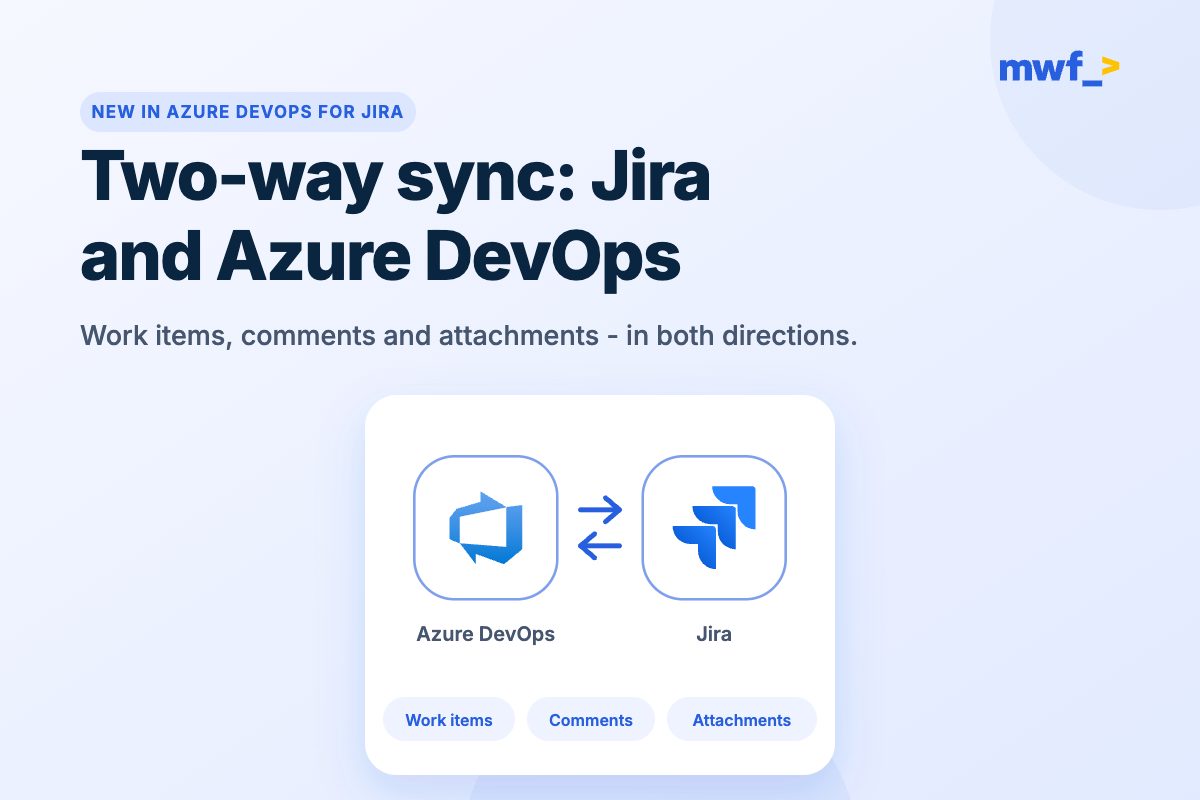











































Jira Automation rules can trigger actions in Azure DevOps — and Azure DevOps events can trigger actions in Jira. With Azure DevOps for Jira, you can auto-transition Jira issues when a pull request merges, create Azure DevOps work items from Jira, and sync status changes between platforms without any manual updates.
This guide covers the most useful automation recipes, how to set them up, and the gotchas that trip up most teams.
How It Works
Jira Automation is Jira's built-in rule engine. You define a trigger, optional conditions, and one or more actions. The Azure DevOps for Jira app extends this system by adding Azure DevOps-specific triggers and actions to the automation rule builder.
This means you can build rules like:
- When a pull request is merged in Azure DevOps then transition the linked Jira issue to "Done."
- When a Jira issue moves to "In Progress" then update a field on the linked Azure DevOps work item.
- When a Jira issue is created with a specific label then create a corresponding work item in Azure DevOps.
For the full technical reference on configuring these rules, see the help documentation. This post focuses on practical use cases and implementation details.
Prerequisites
Before building automation rules with Azure DevOps triggers and actions, confirm these are in place:
- Azure DevOps for Jira is installed and connected to at least one Azure DevOps organization.
- Jira Automation is available on your plan (included in Jira Cloud Standard, Premium, and Enterprise).
- Your Jira issues and Azure DevOps work items are already linked, or you plan to use branch/PR creation to establish links automatically.
Recipe 1: Auto-Transition Jira Issues on PR Merge
This is the most popular automation. When a developer's pull request merges in Azure DevOps, the linked Jira issue automatically moves to "Done" (or "In Review," "Ready for QA" — whatever your workflow dictates).
Why This Matters
Without automation, developers merge a PR and then have to remember to update Jira. They forget. The board becomes stale. Standups devolve into "let me check what actually shipped." This rule eliminates that entirely.
Setup Steps
- In Jira, go to Project Settings > Automation (or the global automation page if you want this across projects).
- Click Create rule.
- For the trigger, select Development trigger — then choose Pull request merged.
- Optionally add a condition to scope this to specific issue types or statuses (e.g., only apply to issues currently in "In Progress").
- Add an action: Transition issue to your target status (e.g., "Done").
- Name the rule and enable it.
Tips
- Add a condition for issue status. Without it, already-closed issues might get re-transitioned if someone merges an old PR. Add a condition like "Issue status is In Progress OR In Review."
- Use the "Transition issue" action, not "Edit issue." The transition action respects your workflow validators and post-functions. Directly editing the status field bypasses them.
- Test with a single project first. Create the rule at the project level, verify it works, then promote it to a global rule.
Recipe 2: Transition on Branch Creation
Move a Jira issue from "To Do" to "In Progress" automatically when a developer creates a branch for it in Azure DevOps.
Setup Steps
- Create a new automation rule.
- Trigger: Development trigger > Branch created.
- Condition: Issue status equals "To Do" (prevents re-triggering on issues that are already in progress).
- Action: Transition issue to "In Progress."
This pairs well with the branch creation workflow covered in our guide to creating Azure DevOps branches from Jira. When developers create branches directly from Jira issues, the issue moves to "In Progress" without anyone touching the board.
Recipe 3: Notify Teams on Status Changes
When a Jira issue transitions to a specific status, send a notification. This is useful for cross-team handoffs — for example, alerting QA when development is done, or notifying a product manager when a feature ships.
Setup Steps
- Create a new automation rule.
- Trigger: Issue transitioned to "Ready for QA" (or your target status).
- Condition (optional): Issue type is "Story" or "Bug" — to avoid notifications for subtasks.
- Action: Send Slack message, Send email, or Send Microsoft Teams message.
If your team lives in Microsoft Teams, the Advanced Microsoft Teams Connector for Jira gives you richer notification options and two-way interaction directly from Teams.
Recipe 4: Create Azure DevOps Work Items from Jira
Some teams use Jira for planning and Azure DevOps for execution. In this setup, when a Jira issue is approved and moves to "Ready for Development," you might want a corresponding work item in Azure DevOps automatically.
Setup Steps
- Create a new automation rule.
- Trigger: Issue transitioned to "Ready for Development."
- Condition: Limit to specific issue types or projects as needed.
- Action: Use a Send web request action to hit the Azure DevOps REST API and create a work item.
The web request action requires you to configure the Azure DevOps API endpoint, authentication (via a Personal Access Token), and the JSON body for the work item. Here is what the action configuration looks like:
- URL:
https://dev.azure.com/{organization}/{project}/_apis/wit/workitems/$Task?api-version=7.0 - Method: POST
- Headers: Content-Type:
application/json-patch+json - Body: A JSON patch document that maps Jira fields (issue key, summary, description) to Azure DevOps work item fields.
This approach is more advanced than the other recipes because it involves direct API calls. For teams that need deep, bidirectional syncing rather than one-off work item creation, the Azure DevOps for Jira app's built-in sync features may be a better fit.
Recipe 5: Auto-Assign on PR Creation
When a pull request is created for a Jira issue, automatically assign the issue to the PR author. This is useful for teams where issues are unassigned until someone picks them up.
Setup Steps
- Create a new automation rule.
- Trigger: Development trigger > Pull request created.
- Condition: Issue is unassigned.
- Action: Assign issue to the user who triggered the event.
Debugging Automation Rules
Jira Automation has a built-in audit log that shows every rule execution, including failures. When a rule does not fire as expected, check these common causes:
- The development trigger requires linked data. If a PR is merged but the branch name does not contain a Jira issue key, the trigger cannot match it to an issue. Always include the issue key in branch names.
- Conditions are too restrictive. If you add a condition like "status is In Progress" but the issue is in "In Review," the rule will not fire. Check the audit log to see which condition blocked execution.
- Rule scope is wrong. Project-level rules only fire for that project. If you need cross-project automation, create a global rule.
- Rate limits. Jira Automation has execution limits based on your plan tier. If you have many rules firing simultaneously, some may be queued or throttled.
Best Practices
After setting up automation, a few principles keep things manageable:
- Start with one or two rules. The auto-transition on PR merge and branch-created rules cover the most common pain points. Add more only when you have a specific problem to solve.
- Name rules descriptively. "Auto-transition on PR merge (Engineering)" is better than "Rule 1." You will have a dozen rules within a month.
- Use project-level rules for project-specific workflows. Global rules are powerful but can cause unexpected behavior when projects have different workflows.
- Document your rules. Keep a simple list of what each rule does, who created it, and why. When something breaks six months later, you will be glad you did.
- Avoid circular triggers. A rule that transitions an issue can trigger another rule that listens for transitions. This can create loops. Use conditions to prevent them.
What Else Can You Automate?
The recipes above cover the most common patterns, but the combination of Jira Automation and Azure DevOps opens up more possibilities. For a broader look at how the two platforms connect — including manual linking, real-time sync, and migration — see our top 4 ways to integrate Jira with Azure DevOps.
If you are evaluating whether to consolidate on one platform or keep using both, our Azure DevOps vs Jira comparison breaks down where each tool excels and where the gaps are that automation can fill.

![Azure DevOps vs Jira: Complete Comparison Guide [2026]](https://cdn.prod.website-files.com/5e92ce2c36c30b6c5fe21317/6a202b795147704ebfa41505_Azure%20DevOps%20vs%20Jira%20-%20Blog%20Thumbnail%201200x800.png)