Back

Atlassian

Microsoft
Google
GitLab
Monday
Slack
Autodesk
View all

Seamlessly embed and view Autodesk CAD files directly in your project management and communication tools. Eliminate file attachment chaos and enhance collaboration across your organization.
The modern engineering and construction workplace demands seamless collaboration across multiple platforms. Design teams no longer work in isolation within specialized CAD applications. Instead, they collaborate with project managers, architects, contractors, and stakeholders who access designs through general-purpose tools like Confluence, Jira, and Outlook. This creates a critical challenge: how do you share complex CAD files without losing fidelity, forcing unnecessary software installation, or creating fragmented workflows?
Autodesk file integrations solve this challenge by bringing CAD viewing capabilities directly into the platforms your teams already use. Engineers can embed interactive 3D models in Confluence documentation. Project managers can view design files directly within Jira issue descriptions. Construction professionals can preview drawings in Outlook attachments. This transformation eliminates the friction of traditional file-based collaboration and creates a unified workspace where all team members access current, accurate design information.
Integrating Autodesk CAD file viewing into your existing platforms delivers transformative benefits for design-driven organizations. First, accessibility becomes democratized. Team members who may not have Autodesk software licenses can view designs directly within tools they use daily. This eliminates the need for multiple software subscriptions and training investments. Your entire organization gains visual access to design information, enabling better decision-making and improved communication.
Collaboration efficiency improves dramatically when team members can view CAD files without leaving their workflow. Instead of downloading files, opening specialized software, searching for information, and exporting findings back to project management tools, stakeholders view designs embedded directly in Confluence or Jira. This single unified view reduces context-switching, accelerates decision-making, and ensures everyone references the same current version of designs.
Version control becomes explicit and transparent. When CAD files embed in Jira issues or Confluence pages, the associated version becomes permanently linked to that context. Designers, project managers, and stakeholders always reference the correct version of files. This eliminates confusion caused by multiple file copies scattered across email, shared drives, and messaging platforms. The audit trail automatically documents which versions were reviewed, discussed, and approved.
Communication and feedback loops accelerate significantly. Construction teams can view site photos in Outlook and overlay design drawings for comparison. Architects can embed 3D models in Confluence pages with detailed specifications. Stakeholders can provide feedback directly on embedded views without downloading files or using specialized tools. This embedded, context-aware feedback process captures communication in the platforms where decisions happen, creating better historical records and reducing miscommunication.
File security and management improve dramatically. Instead of attaching files to emails or storing them in shared folders accessible to unauthorized users, integrated CAD viewers ensure controlled access. Permissions sync with your existing platform permissions. Sensitive design files never need to be downloaded or forwarded to unauthorized recipients. This centralized approach strengthens data governance and helps organizations meet security and compliance requirements.
Productivity gains compound across the organization. Manufacturing teams reduce time spent searching for component specifications. Construction crews access current drawings at job sites without needing specialized equipment. Finance teams review construction budgets with visual context of scope changes. Each user group spends less time managing file logistics and more time on productive work.
Our Autodesk integration suite provides specialized solutions for different platforms and use cases. Each product addresses specific collaboration challenges while maintaining compatibility with the broader ecosystem.
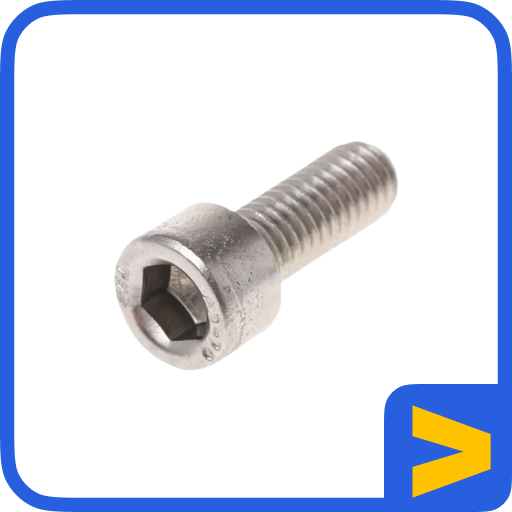
Autodesk Inventor Place Fasteners brings critical assembly efficiency to engineers using Autodesk Inventor. This specialized tool accelerates the process of adding fasteners, bolts, screws, and other standard components to assemblies. Rather than manually selecting, positioning, and configuring each fastener, engineers click to place components with correct specifications. This dramatically reduces assembly design time while ensuring compliance with engineering standards. The tool integrates Inventor's component libraries with intelligent placement logic, delivering professional-grade results in seconds rather than minutes.
Model Viewer for Jira brings full CAD file viewing capabilities directly to Jira issues and documentation. Engineers can embed interactive 2D and 3D models directly in issue descriptions, enabling the entire team to visualize designs without downloading files or opening separate applications. The viewer supports over 70 CAD file formats including DWG, STEP, SolidWorks, and others. Team members can rotate, zoom, measure, and analyze models within Jira, with all viewing and annotation activities tracked within issue discussions. This transforms Jira from a text-based task management system into a visual design collaboration platform.
Autodesk Inventor Quick Section View delivers powerful section view capabilities within Autodesk Inventor, enabling engineers to create cross-sectional views of assemblies and parts with minimal effort. Creating detailed section views traditionally requires careful plane definition, coordinate system manipulation, and view configuration. This tool reduces that process to one or two clicks while producing publication-ready section visualizations. Engineers spend less time manipulating views and more time analyzing designs, making it invaluable for design review and documentation workflows.
CAD Model Viewer for Outlook enables professionals to preview CAD file attachments directly in Outlook without downloading or opening specialized software. When colleagues attach CAD files to emails, recipients see interactive previews within their inbox. Stakeholders can review drawings during email reading without disrupting their workflow. The viewer supports all major CAD formats, making it ideal for organizations where email remains a significant communication channel for design information. This integration particularly benefits field teams and external stakeholders who may not have CAD software installed.
CAD 2D and 3D Model Viewer for Confluence provides the most comprehensive CAD integration with Confluence documentation. Engineers embed interactive 3D models directly in knowledge base pages, technical documentation, and design specifications. Confluence pages become living design documents where models update automatically as Autodesk files change. Team members collaborate through Confluence comments, with design feedback captured in version-controlled documentation. This transformation makes Confluence the central hub for design information and technical knowledge across the organization.
Autodesk Construction Cloud for Outlook bridges construction management and email communication by integrating Autodesk Construction Cloud with Outlook. Construction teams receive project updates, drawing changes, and collaboration alerts directly in their email while maintaining connectivity to Construction Cloud for detailed information. This dual integration keeps field teams informed without forcing them to switch between email and specialized platforms, improving responsiveness and reducing communication delays on job sites.
Our Autodesk integration products support an extensive range of CAD file formats and systems, ensuring compatibility regardless of your design tools. The viewers support native Autodesk formats including DWG, DWF, and Autodesk Fusion 360 files. Support extends to industry-standard formats including STEP, IGES, STL, OBJ, and many others. Support also covers popular design tools including SolidWorks, Inventor, AutoCAD, Revit, and third-party CAD systems.
This broad format support reflects modern design workflows where organizations often work with files from multiple CAD systems. Automotive suppliers work with OEM designs in proprietary formats alongside their own designs in different systems. Architecture firms collaborate with structural engineers using different tools. Manufacturers coordinate with contract manufacturers and suppliers using various CAD platforms. Our integrations ensure that format differences never create barriers to collaboration.
File resolution and fidelity remain high regardless of format. 2D drawings display at full precision with proper layer information. 3D models render with proper materials and colors. Measurement tools provide accurate dimensions. This faithful file representation ensures that stakeholders viewing files in Confluence, Jira, or Outlook see the same information designers intended.
Implementing Autodesk integrations begins with assessing your current file sharing practices. Where do design files currently reside? How do team members access and share designs? What pain points exist in your current workflows? Understanding baseline practices helps prioritize which integrations deliver the most value.
Start with the platform where your team spends the most time. If your organization heavily uses Confluence for technical documentation, implementing CAD 2D and 3D Model Viewer for Confluence provides immediate value. If Jira serves as your central project coordination platform, Model Viewer for Jira ensures design information flows directly to your issue tracking. For organizations relying on email communication with field teams, CAD Model Viewer for Outlook ensures designs remain accessible without platform changes.
Configure permissions carefully to ensure sensitive designs remain protected. Integrate with your existing authentication systems. Set up file storage connections to automatically sync updated designs. Start with pilot projects to validate workflows before broader rollout. Invest in team training on new embedded viewing capabilities.
Finally, establish governance policies for file management within your new integrated platforms. Define which design files should embed in Confluence versus remaining in specialized repositories. Create templates for common documentation types. Document best practices for design collaboration across platforms. These governance practices ensure the integration remains effective and valuable over time.
Q: Which file formats do your Autodesk viewers support?
A: Our Autodesk integration products support over 70 different CAD formats including DWG, DWF, STEP, IGES, STL, SolidWorks, Inventor, Fusion 360, Revit, and many others. This broad support ensures compatibility whether you work exclusively with Autodesk products or collaborate across multiple CAD systems.
Q: Do team members need Autodesk licenses to view files in Confluence or Jira?
A: No. One of the primary benefits of integrating CAD viewers into Confluence and Jira is that team members can view designs without owning Autodesk licenses. This dramatically reduces software costs while improving collaboration access for all stakeholders.
Q: Can viewers handle very large 3D models without performance issues?
A: Yes. Our viewers include optimization technologies to handle large, complex 3D models efficiently. Models render smoothly even for assemblies with thousands of components. Performance remains consistent whether team members access on desktop computers or mobile devices.
Q: How do you handle version control and file updates?
A: Autodesk integration viewers connect to your file storage systems and automatically reflect file updates. When designers update CAD files, embedded viewers within Confluence, Jira, and Outlook immediately display the latest versions. This automatic synchronization ensures all stakeholders always view current information.
Q: Can teams collaborate and share feedback directly on embedded designs?
A: Absolutely. Confluence includes inline comments for collaborative annotation. Jira issues capture design discussions and feedback. Outlook previews enable quick review before opening full viewers. These platforms transform passive file viewing into active collaboration, keeping design discussions captured in version-controlled systems.
Implementing Autodesk integrations successfully requires careful planning and change management. Begin with a pilot program in one department before rolling out organization-wide. This pilot approach allows you to refine processes, train champions, and address unexpected challenges before broader deployment.
Create clear standards for when to use embedded viewers versus external access. Generally, viewing and light annotation should occur in embedded viewers. Heavy editing, format conversions, and specialized operations may better suit dedicated CAD applications. These standards help teams make consistent decisions without micromanagement.
Document your integration architecture and provide comprehensive training. Team members need to understand what's possible, where to access tools, and how to troubleshoot common issues. Investment in user training significantly improves adoption and satisfaction.
Regularly audit file access patterns and user adoption. Identify underutilized integrations and gather feedback on missing capabilities. Continuously optimize based on actual usage patterns rather than theoretical expectations.
Large organizations managing thousands of CAD files face unique challenges around storage, bandwidth, and security. Implement smart caching strategies to balance responsiveness with bandwidth consumption. Local caching of frequently accessed files reduces server load and improves user experience.
Security considerations become paramount with sensitive designs. Ensure file access logs track who viewed which designs when. Implement audit trails for compliance requirements. Use role-based access controls to ensure design information remains restricted to authorized personnel only.
Storage considerations matter significantly. If CAD files reside in cloud repositories like Box, Google Drive, or OneDrive, ensure sufficient bandwidth and caching to support embedded viewing. If files exist on-premises, ensure network connectivity supports the viewer requirements.
While individual Autodesk integrations solve specific problems, their true value emerges when combined into a unified ecosystem supporting your complete design and collaboration workflow. Your organization benefits when design information flows seamlessly from initial concept through construction and operations. Autodesk integrations facilitate this information flow by positioning CAD content at the center of project management, documentation, and communication.
Consider how integrations work together. Architects design building layouts in Autodesk Revit. They embed 3D models in Confluence pages documenting the design approach. Construction managers create Jira issues for building components and embed the corresponding CAD models for contractor reference. Field teams access drawings through Outlook and submit photos annotated with design information. This integrated workflow keeps everyone aligned, enables better decision-making, and reduces rework and miscommunication.
While Autodesk integrations transform your CAD collaboration, many organizations benefit from connecting additional platforms. Move Work Forward offers comprehensive integration solutions across multiple ecosystems:
Explore Atlassian integrations to connect Jira, Confluence, and Bitbucket with your entire toolchain. Discover Microsoft integrations for Teams, Azure DevOps, and Office 365 connectivity. Learn about Google Workspace integrations to bring Google Chat, Calendar, and Docs into your workflow. Check out GitLab integrations for enhanced source control workflows. Review Slack integrations for team communication automation. Explore Jenkins integrations for CI/CD pipeline automation. Discover Monday.com integrations to enhance your project management capabilities.
Each category guide provides deep insights into platform-specific integrations that can complement your Autodesk CAD viewer setup and strengthen your overall collaboration ecosystem.
Professional CAD viewing and integration tools for design and construction workflows
We prioritize customer security and implement secure solutions throughout the development process.

We prioritize customer data privacy with GDPR-compliant data collection and processing.

We ensure that our systems, processes, and controls meet specific trust service criteria.

We employ end to end vulnerability checks during our coding and development process.

We use multi-factor authentication and restrict access based on team’s needs.